Set up your player
The quick setup is web-first, for every plan: do the typing on a computer, where it’s easy, and let the TV take care of itself. You’ll need your provider’s Xtream Codes details (server address, username, and password) — AlchemizeTV works with Xtream Codes subscriptions; M3U playlists aren’t supported.
Quick setup — the easy way (recommended for everyone)
- Create your account and verify your email. Sign up on the home page, click the verification link in your email, and you’re in — every new account starts with a free month of Premium + Cloud, no card required.
Every new account starts with a free month of Premium + Cloud — everything unlocked, no card needed. When it ends, your account simply continues as Free — nothing is deleted.
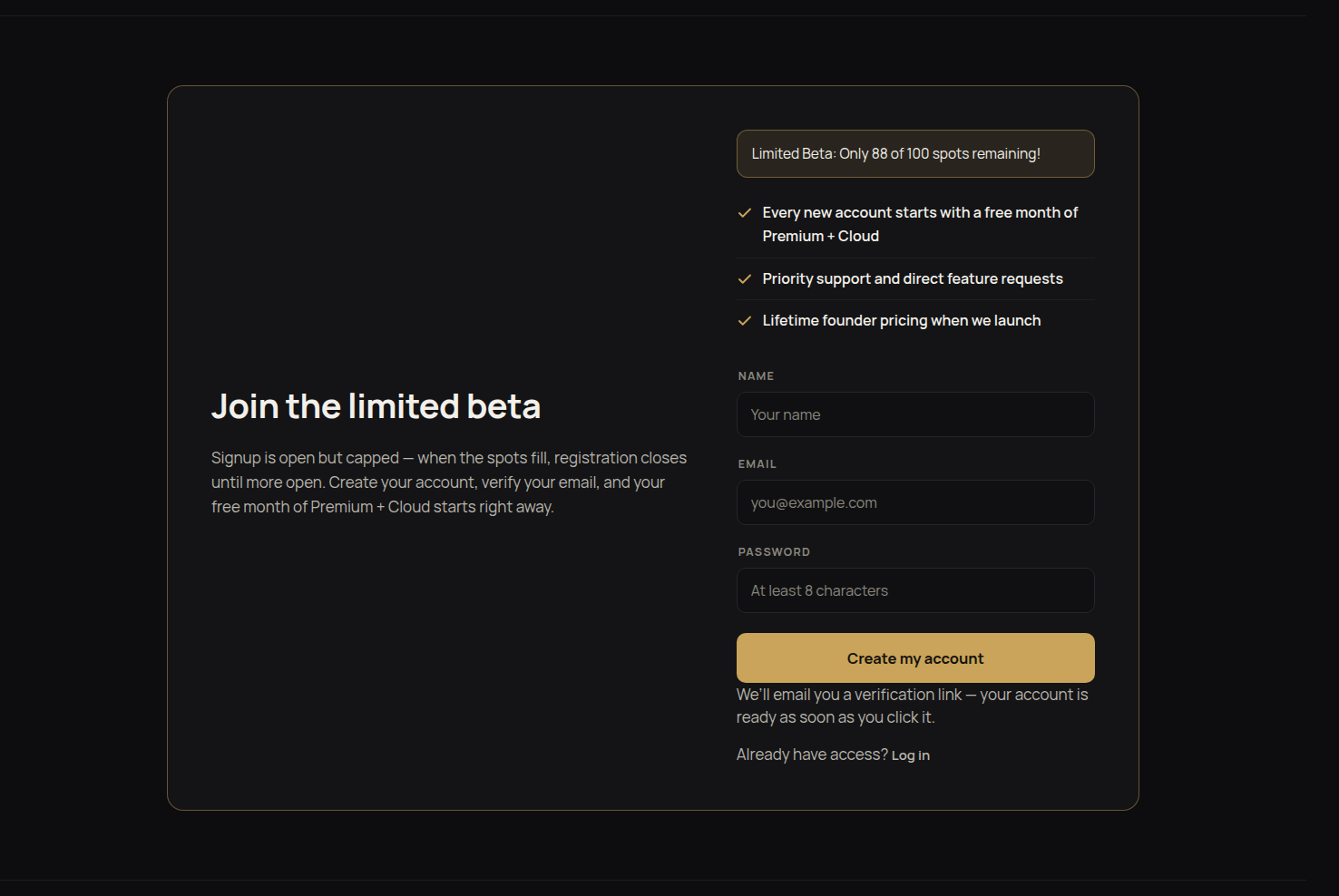
The sign-up form on the home page — name, email, password, and you’re in. - Add your provider on the web. Sign in and open Providers, then enter your Xtream Codes details. This is the one step with real typing in it — server address, username, password — and it’s far easier with a keyboard than a TV remote. If you don’t know your details, ask your provider for the Xtream Codes login for your subscription.
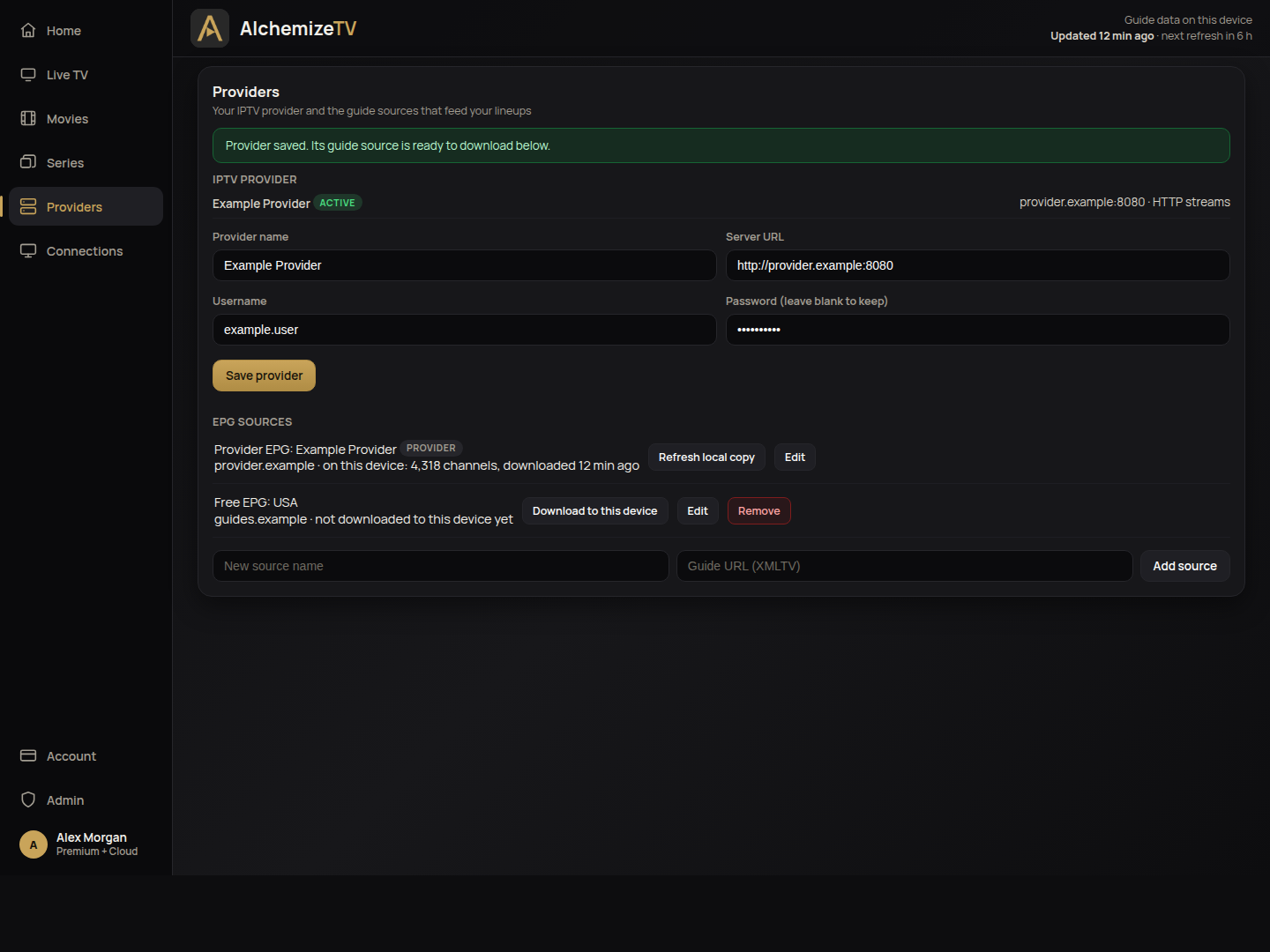
Providers — your Xtream Codes details go in once, here on the web. (Sample content.) - Install the player. Follow the Download page on your TV:
- Fire TV: sign in on the site first, allow installs for your browser or Downloader app (Settings → My Fire TV → Developer options), open the download page on the TV, and install.
- Android TV: sign in on the site, open the download page, tap download, and allow the install.
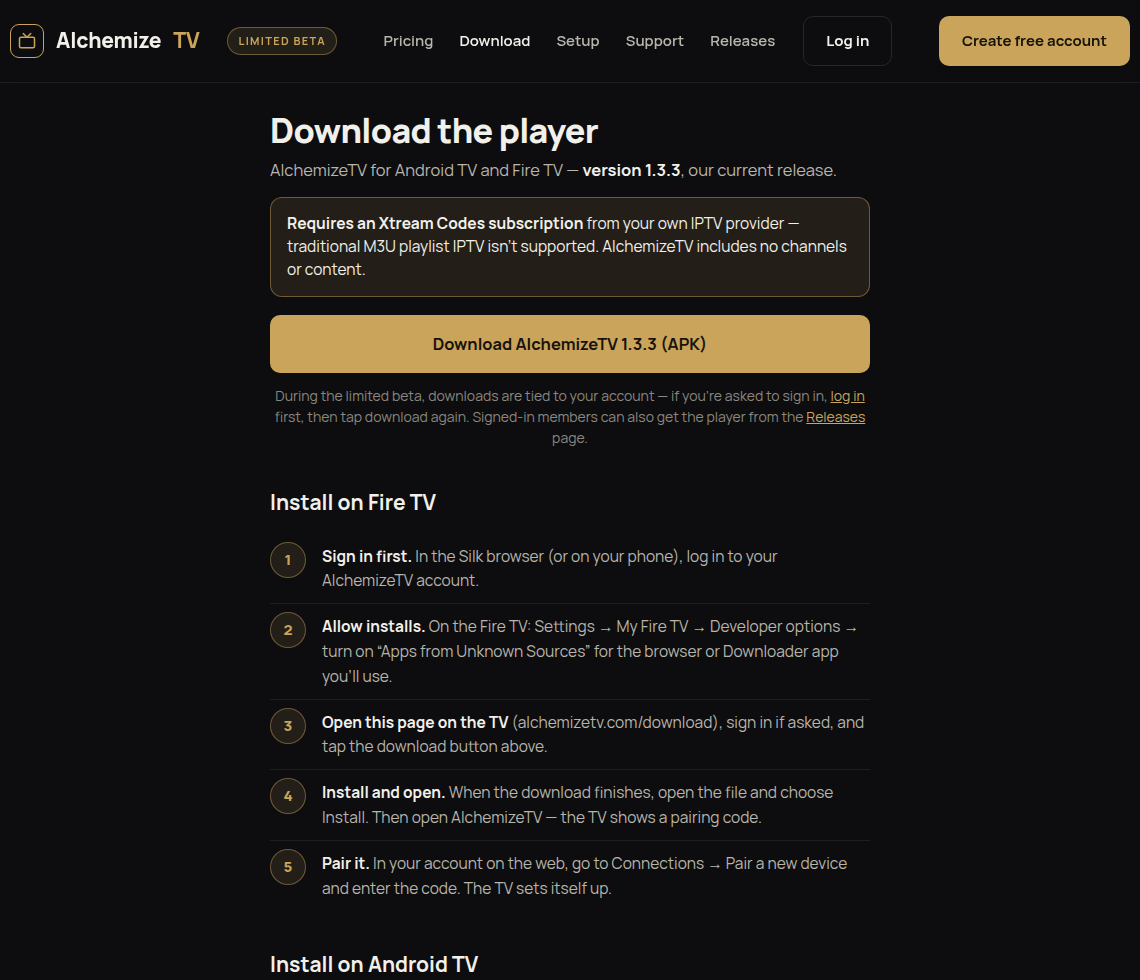
The Download page — the same page you open on the TV to install. - Pair your TV. Open the player — it shows a pairing code. Back on the web, open Connections, choose Pair a new device, and enter the code to approve the TV. That’s the whole trick: no typing your provider details on the TV, ever.
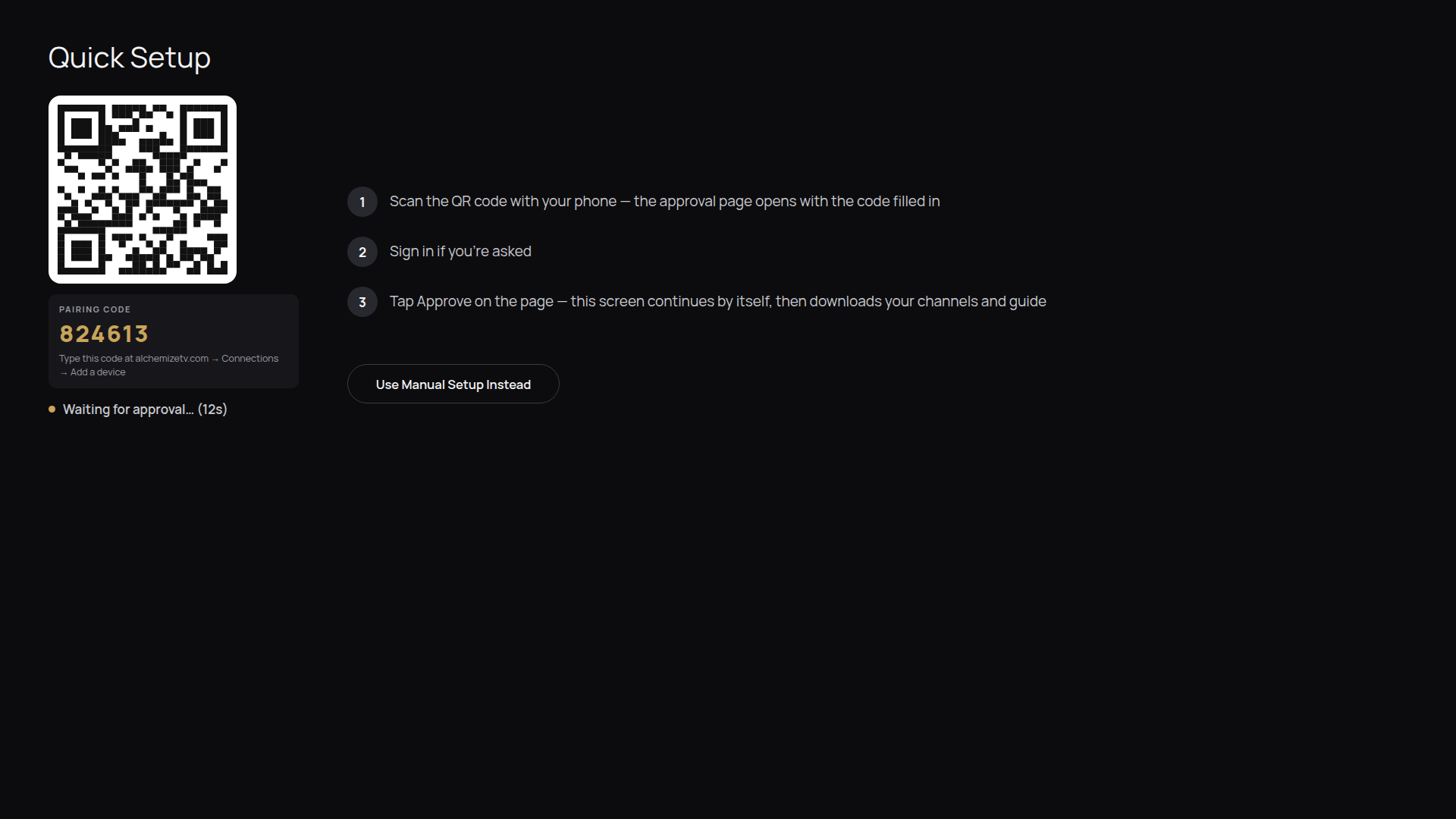
On your TV — the pairing code and QR. (Sample content.) 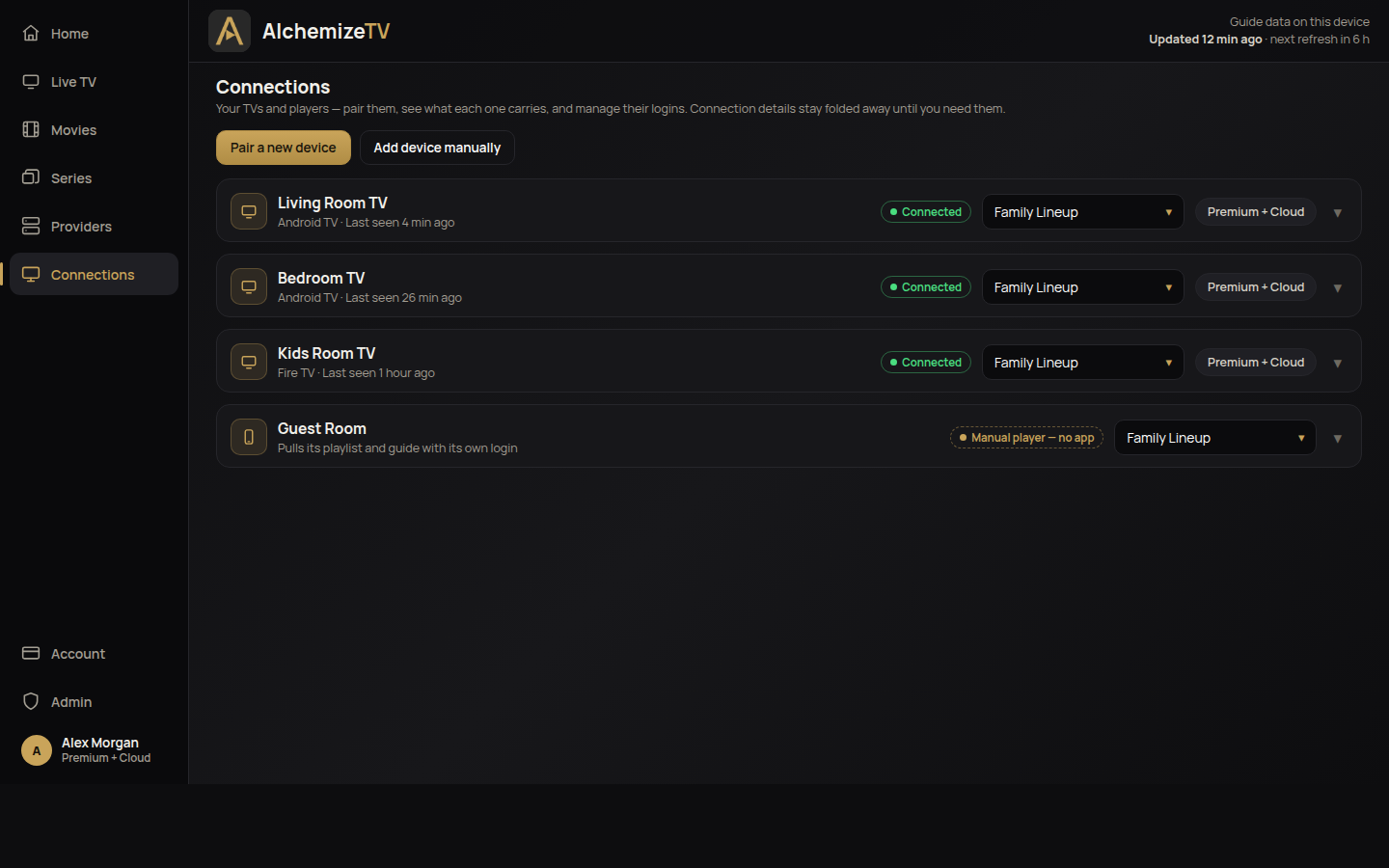
On the web — approve the code in Connections. (Sample content.) - Done — your setup is already on the TV. The provider you added on the web arrives with the pairing. The first guide load can take a few minutes on a big guide; after that, guides refresh on their own. Want it sooner? Press Refresh guide in the player — it shows its progress, source by source, while it works.
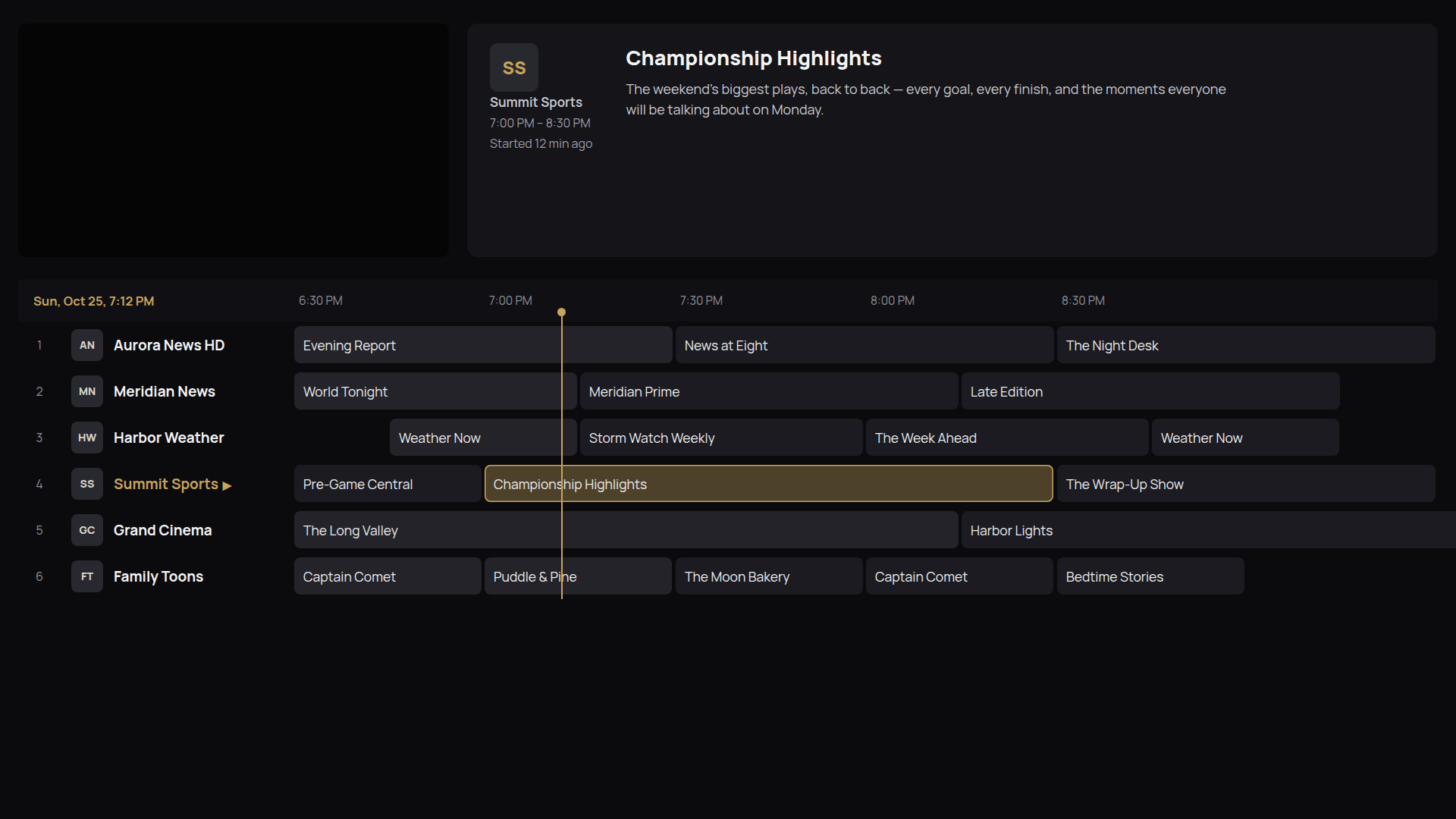
Your guide, already loaded on the TV — this is where you land. (Sample content.)
Prefer typing on the TV? You can add a provider in the player instead — the web way is simply faster.
What you get with Free
- The AlchemizeTV player, and the one provider setup you prepared — delivered to the TV when you pair it.
- Your provider’s own built-in channel guide.
- Pair as many TVs as you like, the same way — each one receives your setup when you pair it.
- Change the setup on the web later? Pair the TV again and it picks up the new setup.
One honest note about trying Free itself: your first month is the free Premium + Cloud trial, so at the start everything is unlocked. Free is what you land on when that month ends — nothing is deleted, the extra features simply lock, and Free never expires, so take as long as you like to judge it. And once the player is installed, it also works with no account at all — add your provider in the player instead.
What Premium adds
Premium is a one-time $14.99 — yours forever — and it unlocks the full player on up to 5 TVs:
- Up to 5 providers on a TV.
- Extra guide sources, with time shift, beyond your provider’s own guide.
- Organize — reorder and hide categories and channels, on the TV.
- Recording, and backup of your setup.
One honest note: after the first delivery, a Premium TV’s setup lives on that TV — Premium doesn’t keep TVs in sync with each other or with the web. That’s what Cloud is for.
What Cloud adds
Cloud is +$1.49 a month, with no one-time charge. While you subscribe, every player on your account is Premium — on unlimited TVs — and the web console becomes the control room:
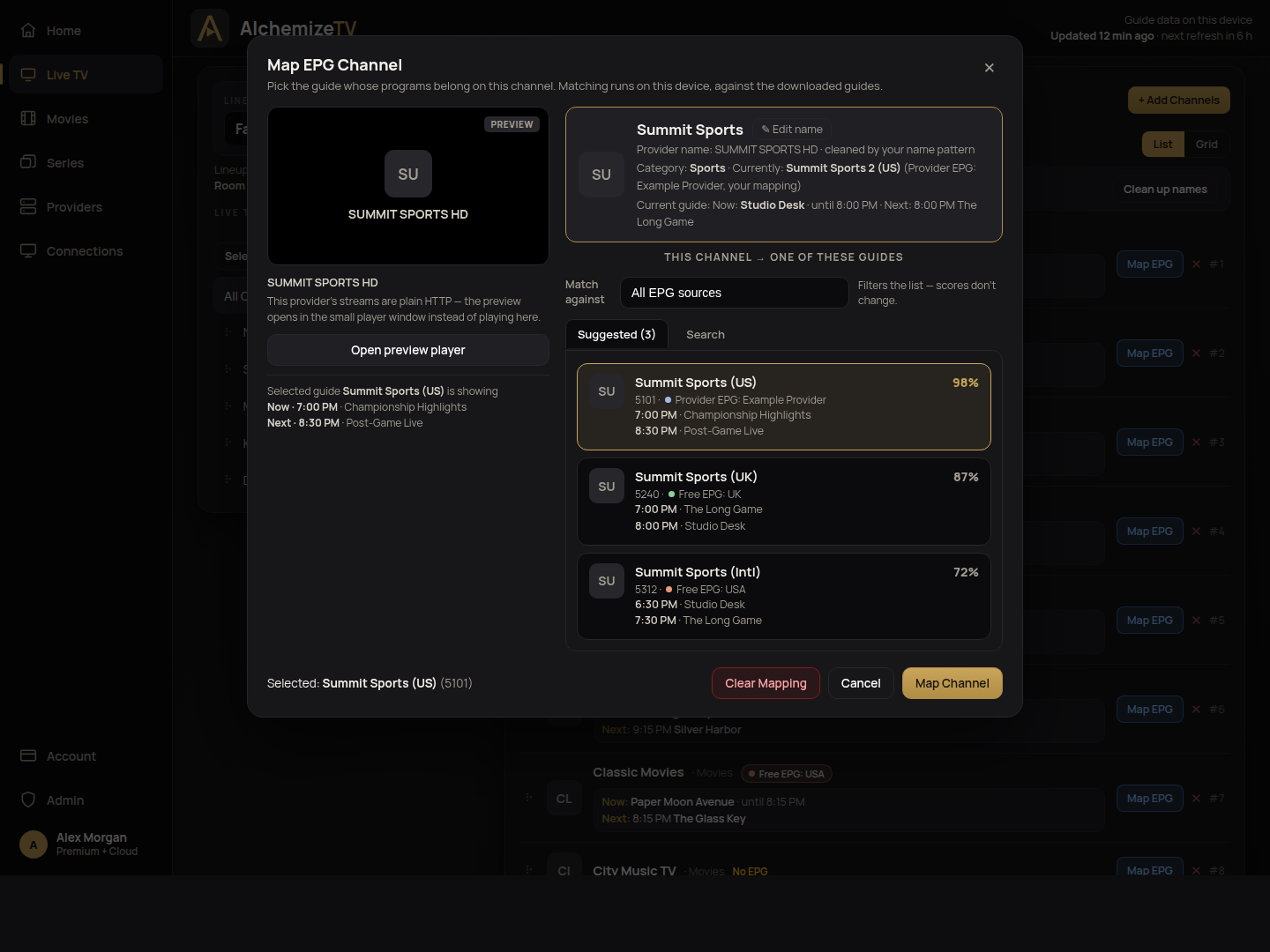
- Lineups, categories, channels, EPG mapping, and providers are all managed on the web.
- Every change syncs to all your TVs automatically — fix a guide once, and it’s fixed everywhere.
- No per-TV setup at all: pair a new TV and it simply arrives ready.
Cancelling Cloud stops the sync at the end of the paid month. If you bought Premium, you keep Premium — nothing is ever deleted.
If something looks wrong
- Programs don’t match the channel. On Cloud, fix the mapping on the web (Live TV → Map EPG) — see Support. On Free and Premium, the guide comes from your provider: check the provider details you entered.
- The guide is empty. Press Refresh guide in the player and let it finish — it tells you, by name, if a source fails.
- Programs are shifted by a fixed amount of time. Your guide source likely needs a time shift — adjust it on the source (on the web under Providers, or in the player under Guide Sources).
- Still stuck? Email support@alchemizetv.com — during the beta, support is the person who builds the product.